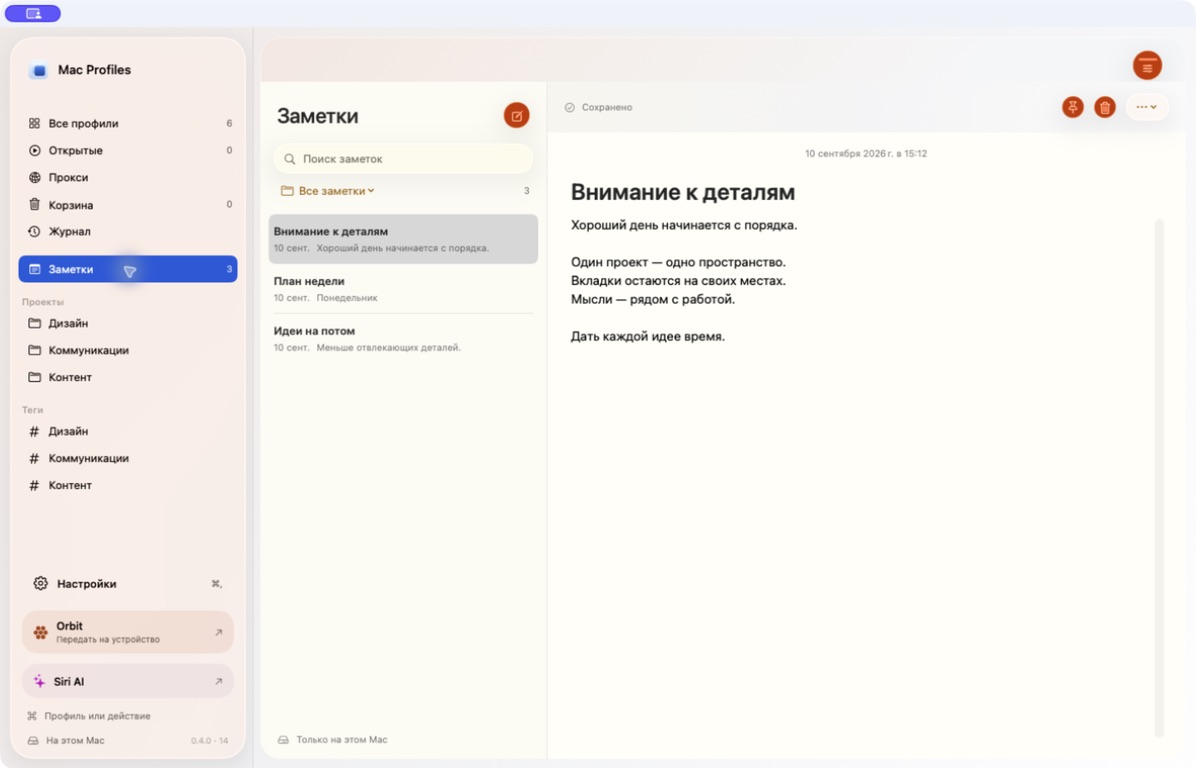
Ideas and working notes, with search and autosave.
Scroll to see it unfold.↓
Screens from the actual app, shown in Russian with example data.
Mac Profiles in motion
Take a look. Find your rhythm.
A short tour of working in the app.
You choose when to play and turn on sound.
Profile settings
Your environment. Down to the details.
01
Connection
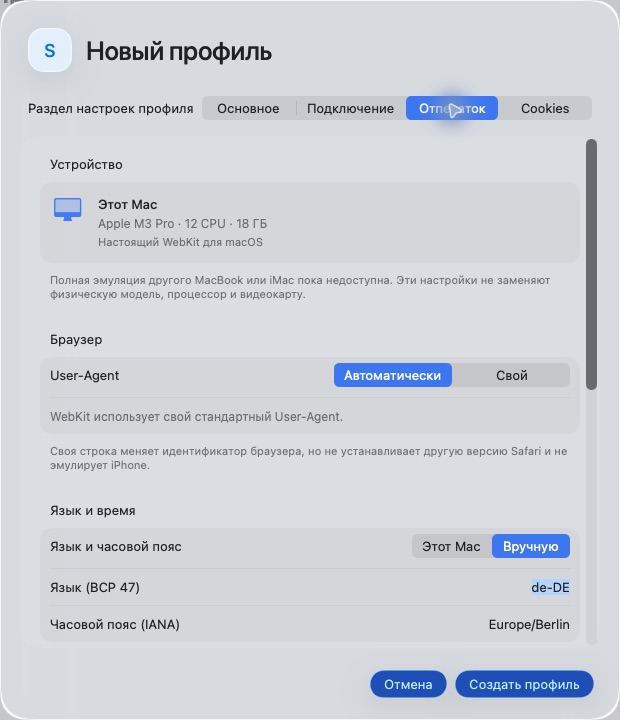
HTTP or SOCKS5. Check the exit IP and country, then copy the address with a click. With a proxy, use its region or set language and time zone manually. For a direct connection, keep your Mac’s settings or choose your own.
Set a custom User-Agent, choose a geolocation mode and enable native protection for selected WebKit signals. Settings stay with the profile and take effect when it starts.
Browser, language, time zone and geolocation settings, all in one editor.
WebKit settings do not turn your physical Mac into a different device model. Feature availability depends on the verified macOS version.
Every day. Together.
Your work. Your own order.
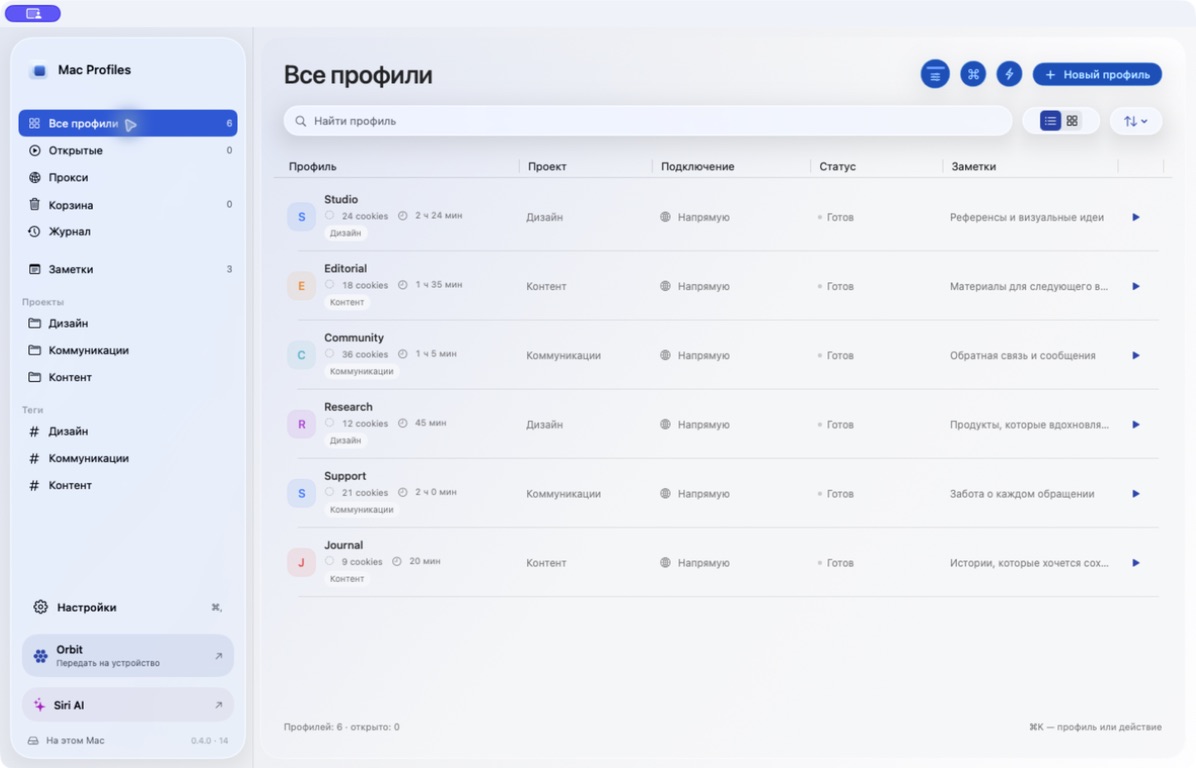
A profile for every task.
Projects, tags and quick search. Saved tabs, bookmarks and familiar keyboard shortcuts. Cookies restore from a separate encrypted snapshot.
A team with clear access.
Shared profile settings, roles and project access. The server assigns a shared profile to one Mac so teammates cannot use it at the same time.
Orbit. Choose what to share.
Cookies, profile settings or a proxy connection, shared by QR code or link. Five minutes, one delivery. The recipient previews the package and saves JSON; cookie-only transfers also offer Netscape.
What can Mac Profiles do as an antidetect browser?
Mac Profiles opens pages in genuine WebKit for macOS. Version 0.4.0 adds HTTP/SOCKS5 proxy launches and native language and time-zone settings. It is not iPhone Safari: Canvas, WebGL, audio and device characteristics are not fully replaced.
We do not claim complete fingerprint replacement or guaranteed anonymity. A profile without a proxy uses your Mac’s normal connection and IP address.
Which Macs support proxy profiles?
Proxy launch is available on the verified Apple Silicon configuration: macOS 26.5 (25F71) and WebKit 21624.2.5.11.4. The app checks compatibility and restrictions before opening a page. If a check fails, launch stops. After a macOS update, you may need a newly verified version of Mac Profiles.
The app uses private WebKit APIs. Compatibility is therefore limited to the specific engine version that has been checked.
What restrictions apply when using a proxy?
WebRTC, service workers and WebTransport are disabled for proxy profiles. Standard mode also blocks geolocation; the separate custom-coordinate mode is described below. Local-network addresses and direct IPv6 addresses are blocked; domain addresses use the configured proxy. Some website features may therefore be unavailable.
Specific scenarios involving proxy failure, direct local requests, WebRTC/STUN and background service workers have been tested. This does not prove the absence of every DNS, QUIC or other bypass. These settings apply inside the browser profile, not as a firewall for the whole Mac.
How are language, country and time zone applied?
With a proxy, automatic mode resolves the exit IP and region; language and time zone can also be chosen manually. A direct connection can use this Mac’s settings or a language and time zone specific to the profile. Manual values apply in a separate WebKit process and stay consistent across pages, embedded frames and workers. Your Mac’s system settings remain unchanged.
WebKit can shorten a language tag: for example, ja-JP may appear as ja. Resolving an IP region does not itself send coordinates to a website. Custom geolocation is a separate setting; proxy profiles do not use the Mac’s real coordinates.
Can I set coordinates for a website?
Yes. Custom geolocation accepts a latitude, longitude and accuracy. These are separate, explicit values: automatic proxy-region detection neither enables this mode nor fills in its coordinates. A native WebKit provider supplies the position on the verified macOS 26.5 and engine version listed above; permission is limited to HTTP/HTTPS pages in the active profile.
Without a proxy, System mode keeps normal macOS geolocation behavior, while Blocked denies access. With a proxy, System mode also means blocked. Custom coordinates do not discover a real physical location, and choosing them does not change the connection’s IP.
What does native fingerprinting protection do?
This optional setting is off by default. On the verified WebKit version, it enables native reduction of selected Canvas 2D, audio and screen signals. Its effect has been checked in bounded scenarios, not across every possible browser surface; some websites may behave differently.
The mode does not replace the GPU or change raw WebGL readPixels. It does not create a persistent fingerprint either: results can vary across reads, tabs or restarts. We do not claim complete device replacement, a stable per-profile seed or guaranteed anonymity.
Can I check and copy the proxy IP?
Yes. The profile editor shows the exit IP, country and flag after a check. Click the IP to copy it. Refresh runs another check; if the connection fails, the old result is hidden.
The region is resolved through the proxy using ipwho.is. A successful IP check alone does not confirm the absence of all network leaks.
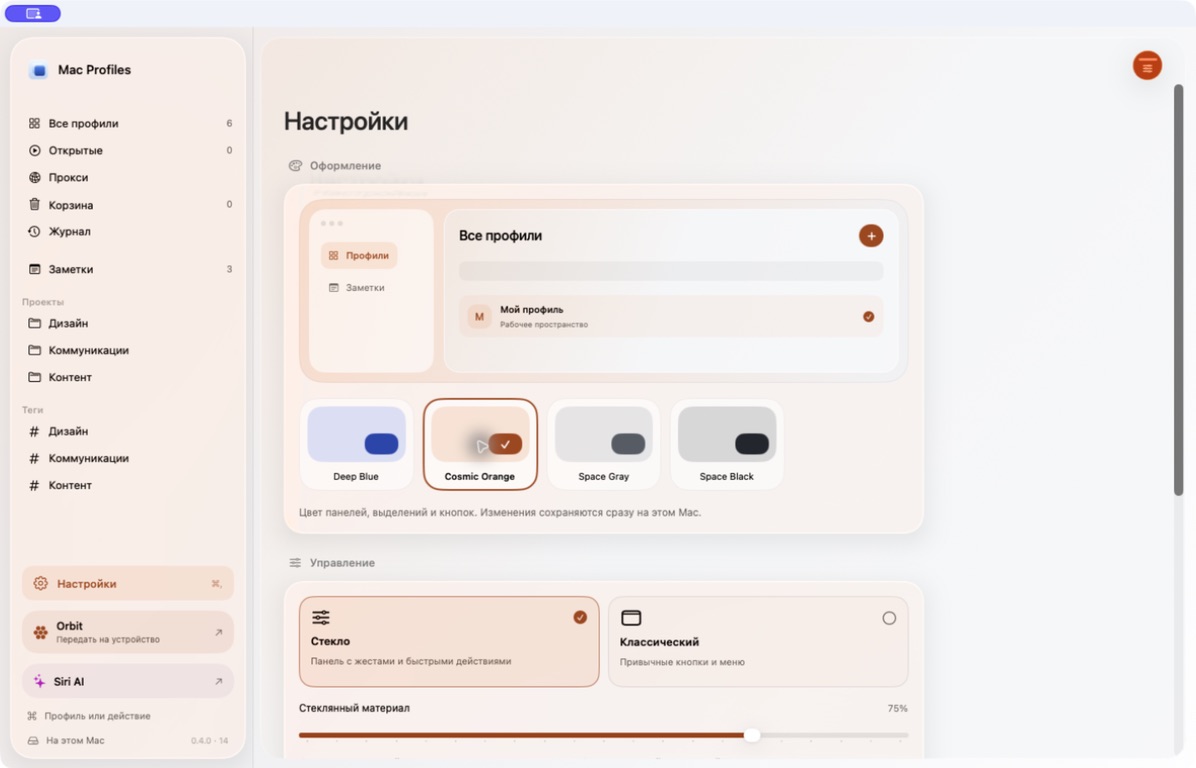
Can I change the appearance?
Appearance offers Deep Blue, Cosmic Orange, Space Gray and Space Black. Your choice persists after restarting. You can also open Settings with Command + comma.
Which devices are supported?
Macs with Apple M-series chips and macOS 14 or later. There is no app for Intel, iPhone, iPad or Windows. On a phone, you can open the Orbit receiving page in a browser.
The current build is being checked on macOS 26.5. Proxy launches have the narrower requirements described above; compatibility of other features with earlier systems is still being tested.
What stays separate in each profile?
Cookies, localStorage, IndexedDB and other website data live in a separate WebKit data store. History, bookmarks, saved tabs and a snapshot of accessible cookies also belong to the individual profile.
Duplicating settings creates a new profile without copying the browser session or proxy password.
Do cookies survive a restart?
In version 0.4.0, WebKit cookies available to the app are saved in a local encrypted snapshot, including cookies with no expiry date. The snapshot restores before pages open. Persistent cookies keep their original expiry; deleted and expired entries do not come back.
The snapshot updates on changes, is additionally checked every three seconds, and saves before a normal profile close. A crash can lose changes made after the last confirmed snapshot. A damaged snapshot or unavailable key stops restoration; the file is not overwritten with empty data.
This preserves cookies that WebKit exposes to the app. Hidden attributes and the full browser session are not copied.
Can I import cookies?
Closed local profiles support JSON and Netscape import and export. Choose a file or Paste Text: the format is detected automatically, and you can review the record count and domains before importing. Use JSON to preserve SameSite. Values stay hidden until you choose to reveal them. Cookie transfer is not yet available for shared profiles.
Imports are saved to the local encrypted snapshot. JSON and Netscape exports contain cookie values in plain text: share them only with a trusted recipient and store them like access credentials.
How do team members connect?
An administrator hosts the team server, creates a member and gives them a personal token. The member opens the Team menu and enters the server’s HTTPS address and token. The server needs a valid TLS certificate.
Roles and project access are checked by the server. An owner or administrator can revoke a member’s access.
Can a shared profile open on two Macs?
The server grants one Mac permission to launch. The app regularly renews that permission and closes the shared profile on the first failed renewal. Shared profiles also close when the Mac sleeps.
After access is revoked, a profile can stay occupied until the previously granted lease expires. This prevents simultaneous use before closure is confirmed. Coordination does not replace network protection.
What syncs between teammates?
The server stores members, permissions, shared profile settings and activity events. Cookies, history, tabs and proxy passwords do not automatically move between Macs. Orbit separately transfers selected cookies, profile settings or a proxy connection by explicit action; it does not sync sessions in the background.
Where are passwords and browser data stored?
Proxy passwords, the team token and a separate cookie-snapshot key are stored in macOS Keychain. Website data remains in local browser stores. The cookie snapshot is encrypted on this Mac.
During an Orbit transfer, the server temporarily receives an encrypted package of the chosen type. The decryption key remains in the fragment of the recipient’s link. Cookies and notes are added to profile settings only when explicitly selected. History, tabs, team-profile launch rights and the proxy password are not included.
How does the Orbit cloud work?
In Orbit, choose cookies, profile settings or a proxy connection. Transfers use a separate QR code or link. The particle cloud is a visual: camera recognition of its particles and a dedicated iPhone app are not available yet.
The receiving page shows the package type and contents, with JSON available to copy or download. Cookie-only packages also offer Netscape. Mac Profiles imports an Orbit file or text into a new local profile after preview and confirmation. Cookies come from a closed local profile; adding them to profile settings is off by default.
The package is encrypted with AES-256-GCM. A code lasts five minutes and delivers the package once; the sender can cancel an active transfer. A reachable team HTTPS server must support the chosen type. Proxy passwords are excluded. Downloading does not install cookies in Safari, and importing does not launch the browser. Orbit does not transfer localStorage or the full browser session.
Why is macOS asking for a Keychain password?
The encrypted cookie snapshot’s key is stored in macOS Keychain. The system may request your Mac login password to unlock the keychain, or permission for the app to access a key. The app does not create a separate cookie password.
New internal builds use the same team certificate so their identity remains stable across updates. The first upgrade from an older test build may still require permission. Internal signing is not Developer ID signing and does not replace Apple notarization.
Where are notes saved?
On this Mac, with automatic saving after text changes. Notes support search, pinning, trash and restore. They do not sync to the team server and do not have separate encryption.
Does Siri AI answer questions yet?
For now, this is a preview of a future Mac Profiles assistant. AI responses and the microphone are not connected. It is not an integration with Apple’s system Siri.
macOS will not open the app. What should I do?
A test build without Developer ID may require separate permission. Make sure the file came from your team, then:
Try opening Mac Profiles from your Applications folder.
Open System Settings → Privacy & Security.
Find the Mac Profiles message, choose Open Anyway, and confirm.
If macOS reports a malicious or damaged file, ask your team for a new build.